 There's a widespread tendency to consider the
 value property of a text field as an attribute instead of a simple property whose value is a string. Such property cannot have a primitive null value because the DOM specifications allow only nodes to have such a value. jQuery wraps the value property with its method val() and it uses the same principles. Let's see why an empty value of a text field cannot be null.
Showing posts with label dom. Show all posts
jQuery: check if an attribute exists
jQuery doesn't provide a method similar to hasAttribute() to determine whether a given attribute exists in the DOM. However, we can use the attr() method for this task. In fact, this method returns a boolean value when used with conditional statements.
jQuery: debugging elements in the console
0
When we create complex DOM structures with jQuery, it's vital to keep track of the inner structure of each element. We can actually log such structures to the console in order to analyze how the DOM has been constructed. To accomplish this task, we need to gather as much information as possible about our elements. Let's see how.
PHP: a DOMNodeList is not an array
 Most developers who start using the PHP's DOM extension sometimes get confused by the concept of
 DOMNodeList. In the DOM terminology, a node list is an ordered collection of nodes which has a length and an item property. The former returns the number of elements contained within the node list, while the latter accepts an integer as its value (starting from 0) by which you can access a given node within that list. The DOM specifications (created by the W3C) state that a node list is actually an interface, not an array. PHP implements this component as a class (object), not as an array (thus following the DOM specifications).
JavaScript: advanced DOM testing
 While surfing the Chrome source code I've found an interesting
utility library for handling DOM Level 2 tests in XHTML. The author of this small library is the W3C, though no documentation nor commented description has been provided in the source. The Chrome team has further extended it by adding some code at the end of the file. There are a few comments here and there that should indicate the purpose of each component. After viewing the code, this resource looks more a collection of components than a complete library. However, there are some components that catch the eye for their usefulness. For example:
While surfing the Chrome source code I've found an interesting
utility library for handling DOM Level 2 tests in XHTML. The author of this small library is the W3C, though no documentation nor commented description has been provided in the source. The Chrome team has further extended it by adding some code at the end of the file. There are a few comments here and there that should indicate the purpose of each component. After viewing the code, this resource looks more a collection of components than a complete library. However, there are some components that catch the eye for their usefulness. For example:
 In XML, IDs are treated differently from HTML. Since XML has no predefined DTD, an ID attribute has no special meaning for a user-agent that tries to access an element through the DOM. Further, since browsers (the most used UAs on the web) don't use DTDs when they access documents, even if you specify and ID attribute in your custom DTD (by using
 Chrome: DOM engine performance
 Each web browser has two separate engines, one for the implementation of JavaScript and one for the DOM. When you call a JavaScript function, you're using the JavaScript engine, while when you call a DOM method, you're using the DOM engine. Traditionally the DOM engine has always been slower than its JavaScript counterpart, so browser vendors put much effort in optimizing the performance of this engine. A particular case is Chrome, which clearly shows how the optimization of the DOM engine can be actually pushed to the limits. This video explains the details of such optimization.
JavaScript: walking the DOM with loops
We are all accustomed to use loops while walking
the DOM structure with JavaScript. We can either use a for or a do...while loop for that purpose. Usually we initialize an
index and then we use it to loop through a DOM collection of nodes, such as that returned by getElementsByTagName() or childNodes.
I see this pattern over and over in many scripts I studied so far. Recently I read the JavaScript guide by David Flanagan who, talking about the DOM
in the 17th chapter of his guide, proposed an alternate method:
jQuery wrapper function and DOM methods
 The jQuery's wrapper function features many interesting possibilities that should not be overlooked. The most underused feature of the
 $() alias is its ability accept an element reference obtained through normal DOM methods, such as getElementById(). This feature turns out to be very useful when we're working in a mixed environment or when we want to exploit the faster performance of built-in DOM methods. For example, in jQuery you can write this:
JavaScript: the firstChild and lastChild DOM properties
In this post I'm going to show you how to implement a basic DOM navigation system using the JavaScript's implementation of the DOM specifications. More specifically, we're going to use the firstChild and lastChild properties of a DOM node to navigate a basic DOM structure. Further, our code will take into account the problem of ghost nodes, that is, line breaks or white space considered as nodes by most browsers.
We start everything out by defining a really simple structure to work with:
<ul id="test">

<li>A</li>
<li>B</li>
<li>C</li>

</ul>
As you can see, this structure has two blank spaces, one at the beginning and the other at the end of the structure itself. So we're going to take all this into account, like so:
window.onload = function() {


   var DOMNav = {


      start: document.getElementById('test'),

      first: function() {

         var element;

         if(this.start.hasChildNodes()) {


            if(this.start.firstChild.nodeType == 1) {


                element = this.start.firstChild;


            } else {


                element = this.start.firstChild.nextSibling;

            }


         }

         return element;


      },

      last: function() {


          var element;

          if(this.start.hasChildNodes()) {


              if(this.start.lastChild.nodeType == 1) {


                  element = this.start.lastChild;


              } else {

                  element = this.start.lastChild.previousSibling;

              }


          }

          return element;


      }


   };


var first = DOMNav.first();
var last = DOMNav.last();

alert(first.firstChild.nodeValue);
alert(last.firstChild.nodeValue);

};
When using these properties, we first make sure that the current node is an element node. If so, we return that element. Otherwise, we move to the next or previous node to get the correct value. You can see a demo below.
Demo
JavaScript: turning an HTMLCollection into an array
In the DOM terminology, an HTMLCollection is a set of DOM nodes that behave in a way that lets developers think that they're dealing with a normal array. This is not the case, because this kind of DOM structure shares only the length property and the indexed access to elements with a normal JavaScript array object. Sometimes, however, it's preferable to turn this kind of collection into a normal JavaScript array, for example to use some of the most popular array methods. Here's an example:
function HTMLNodesToArray(reference, elems) {


    reference = document.getElementById(reference);
    elems = elems || '*';
    var nodes = [];

    var elements = reference.getElementsByTagName(elems);
    var i;
    var len = elements.length;

    for(i = 0; i< len; i += 1) {


        var node = elements[i];
        nodes.push(node);


    }

    return nodes;
}
This function simply iterates over an HTMLCollection and stores all its member nodes in an array for later use. A practical example would be the following:
unction showNodes() {

    var htmlNodes = HTMLNodesToArray('test', 'li');

    var reduced = htmlNodes.pop();

    var last = reduced;

    alert(last.firstChild.nodeValue);


}

window.onload = function() {


    showNodes();

};
In this case, we've been able to use the common array pop() method on our collection of nodes.
Demo
JavaScript: iterating over DOM nodes
JavaScript implements the DOM like many other languages. The DOM is a model that represents a hierarchy of page elements, called nodes. In the HTML implementation, nodes can be grouped by node collections. These collections are a live representation of the page structure. In this post I'm going to show you how to iterate over DOM nodes first by getting an HTML node collection using getElementsByTagName() and then with a normal for loop. Let's say that we have a page like this:
<ul id="test">

    <li>Item</li>
    <li>Item</li>
    <li>Item</li>

</ul>

<form id="test-form" action="" method="get">

    <div><input type="text" name="q" id="q" />

    <input type="submit" value="Test" id="subtest" name="subtest" />
    </div>

</form>
We want to retrieve all the list items and the input fields. Here's how:
var Iterator = {


    iterate: function(values) {


       var i, len = values.length, html = '';

       var htmlBody = document.getElementsByTagName('body')[0].innerHTML;

       for(i = 0; i<len; i += 1) {


          html += '<div>' + (i+1) + ': ' + values[i].tagName.toLowerCase() + '</div>';

       }

       return document.body.innerHTML = htmlBody + html;

    }


};

function List(reference) {


    this.reference = document.getElementById(reference);
    this.items = this.reference.getElementsByTagName('li');


}


function Form(hook) {

    this.hook = document.getElementById(hook);
    this.inputs = this.hook.getElementsByTagName('input');

}

var list = new List('test');
var form = new Form('test-form');

Iterator.iterate(list.items);
Iterator.iterate(form.inputs);
The Iterator object has a method called iterate() that performs a loop through all the values passed in as its sole argument. These values are actually two NodeLists obtained from the List and Form objects using getElementsByTagName().
Demo
Introduction to JavaScript and browser DOM
 This is an interesting video tech talk from Google taken from YouTube. Really useful if you think about it in terms of a practical introductions to two key concepts like JavaScript and the DOM.
DOM: Selectors API and querySelectorAll
A new and powerful feature of the DOM is the Selectors API specification, which allows developers to use a CSS syntax to select elements in the DOM tree. The new method that works behind the scenes is querySelectorAll() which converts CSS selectors to retrieve the elements and values that we want from the DOM tree. Its syntax is as follows:
var selector = document.querySelectorAll('#test #foo');
In this case, given the above CSS selectors this method will return a direct reference to a node with ID equal to foo.
As you can see, in this case it's just as when we write:
var selector = document.getElementById('test').getElementById('foo');
But this method can also return a NodeList, depending on the CSS selectors we use as query. For example, given the following DOM snippet:
<ul id="test">
 <li>Item</li>
 <li><span>Test</span></li>
 <li>Item</li>
</ul>
We want to select the text of the span element. Using querySelectorAll() we can write:
function query(querySelector) {

     querySelector = querySelector || 'body';

  var selector = document.querySelectorAll(querySelector);

  alert(selector[0].firstChild.nodeValue);

}

window.onload = function() {


  query('#test li:nth-child(2) > span'); // alerts 'Test'

};
We're using an array-like syntax to access our node because in this case we're working with a NodeList object. In a nutshell: to properly use this new method, always make sure that the returned value be in the format that you do expect.
Web development without Internet Explorer
 As a matter of fact, for years Internet Explorer has slowed down the global development of web standards and, more broadly, the entire future of the web. For years web developers have been forced to, as Ian Hickson says, code to the lowest common denominator instead of coding to the standards. As a result, now many developers still use a small percentage of the full potential of web standards not because they don't know how to code properly, but because they're afraid of what consequences might result in Internet Explorer.
For example, all JavaScript frameworks devote a significant amount of their inner routines to mitigate the differences between Internet Explorer and the other browsers. Further, the power of CSS3 features is still underused because of the support in Internet Explorer which is still far from getting the level of Firefox, Safari, Chrome, and Opera. What's more, XML and XSLT still rely on the presence of the MSXML library to exploit all their potentialities to the full. Finally, the most advanced features of the latest DOM specifications are still a theoretical thing in Internet Explorer.
How much time we devote to rethink a full website in terms of compatibility with IE? Sure, we're talking about backward compatibility here, the same thing that should make the web look like the old, good '90s, with GIF animations, dial-up modems and no AJAX, no CSS, all tables and, if we are lucky, JavaScript popups. Do you really think your web development process in terms of backward compatibility? I think the majority of developers would all agree to view the web from the forward compatibility point of view. Do you really like the idea of writing a CSS file made up only of class and ID selectors? I guess not.
Do you really enjoy the practice of duplicating your code when you want to use XPath on Internet Explorer? Do you still like all the quirks, bugs, inconsistencies that come along with IE's implementation of web standards? That's quite masochistic, in my opinion. Instead, rethink the web in terms of new features that may be added now, today or in the future. Embrace the future, not the old, sinking relics of a bigon age when the e-mail was the only practical implementation of web communication.
In a nutshell: test in Internet Explorer, if this makes you feel relieved but code just as if IE doesn't exist.
HTML5: case-sensitivity and the DOM
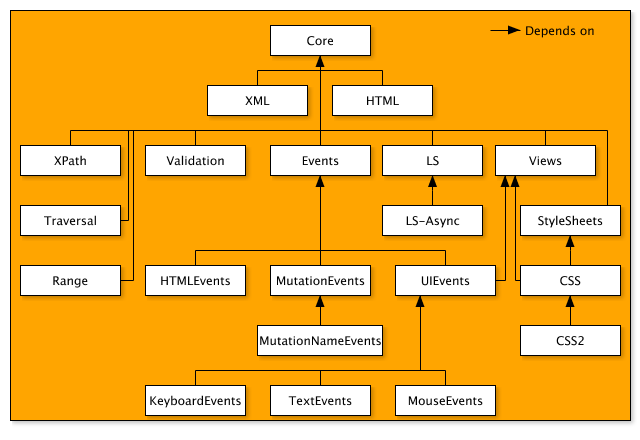
We read from the DOM Level 2 HTML specifications:
1.3. XHTML and the HTML DOM
The DOM HTML Level 1 API were originally intended to be used only for HTML 4.01 documents. The APIs were defined well before XHTML 1.0 became a specification, or before it was worked on by the HTML Working Group. From the DOM point of view, The biggest difference between HTML 4.01 (and earlier) and XHTML 1.0 is that XHTML is case sensitive, whereas HTML 4.01 is case insensitive. The HTML case insensitivity is also reflected in the DOM HTML API. For instance, element and attribute names are exposed as all uppercase (for consistency) when used on an HTML document, regardless of the character case used in the markup. Since XHTML is based on XML, in XHTML everything is case sensitive, and element and attribute names must be lowercase in the markup. Developers need to take two things into account when writing code that works on both HTML and XHTML documents. When comparing element or attribute names to strings, the string compare needs to be case insensitive, or the element or attribute name needs to be converted into lowercase before comparing against a lowercase string. Second, when calling methods that are case insensitive when used on a HTML document (such as getElementsByTagName() and namedItem()), the string that is passed in should be lowercase.
Note: The interfaces provided in this document are only for HTML 4.01 and XHTML 1.0 documents and are not guaranteed to work with any future version of XHTML.
So I've created a simple test to check what is the actual behavior of web browsers when dealing with HTML5 that, as you know, is case-insensitive. The markup is pretty simple:
<p>Lowercase</p>
<DIV>Uppercase</DIV>
And here is the basic DOM test:
window.onload = function() {

   var p = document.getElementsByTagName('p')[0].firstChild.nodeValue;
   var div = document.getElementsByTagName('div')[0].firstChild.nodeValue;

   alert('Lowercase p is: ' + p);
   alert('Uppercase div is: ' + div);

};
As you can see, I've specified a reference to the div element using a lowercase notation, though the element
itself is actually in uppercase letters. All browsers, except Firefox 3.6, execute correctly the above code.
Firefox 3.6 simply returns null. So the question is: what will be the default behavior of Internet Explorer 9 for
such cases? Time will tell.
JavaScript DOM cheatsheet
Check out this SlideShare Presentation:
Javascript dom-cheatsheet
View more presentations from zhao chengyang.
Scripting The DOM
Check out this SlideShare Presentation:
Scripting The Dom
View more presentations from Ara Pehlivanian.
The Theory Of The DOM
Check out this SlideShare Presentation:
The Theory Of The Dom
View more presentations from kaven yan.
Ajax, XML and DOM
A really complete video tutorial.